> ## Documentation Index
> Fetch the complete documentation index at: https://docs.ultra.security/llms.txt
> Use this file to discover all available pages before exploring further.
# Slack Alerts
> Send Ultra alerts to channels in your Slack workspace
Ultra can post your organization's alerts to Slack channels, so your teams see them where they already work. You choose which channels receive alerts and which severities each channel gets.
## What You Get
* Alerts posted to any Slack channel the Ultra app has been invited to, public or private
* A severity filter per channel, so a high-traffic channel only gets what matters
* A link on every message that opens the alert in Ultra Hub
## Prerequisites
* **Owner or admin** role in Ultra Hub
* Permission to install apps in your Slack workspace
* At least one alert source switched on in [Alerts configuration](/observability/alerts#configuration). A channel only receives alerts from sources that are switched on.
## Set Up Slack Alerts
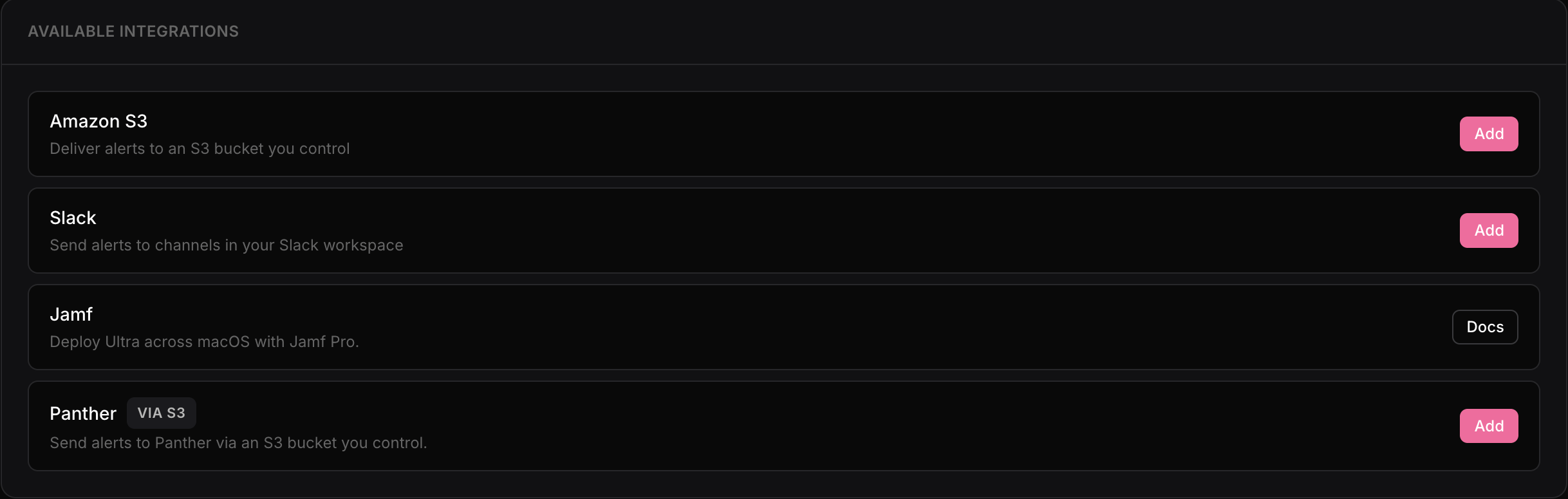
In Ultra Hub, go to **Settings > Integrations**. Under **Available integrations**, click **Add** next to **Slack**.
 Slack asks you to approve the Ultra app for your workspace. Ultra requests only these permissions:
| Permission | Why Ultra needs it |
| ----------------- | ----------------------------------------------------- |
| `channels:read` | List the public channels the app has been invited to |
| `groups:read` | List the private channels the app has been invited to |
| `chat:write` | Post alerts to those channels |
| `channels:manage` | Leave a public channel when you remove it from Ultra |
| `groups:write` | Leave a private channel when you remove it from Ultra |
Ultra cannot read messages in your workspace.
After you approve, you return to **Settings > Integrations** and your workspace appears under **Connections**.
A Slack workspace can be connected to only one Ultra organization.
In Slack, open the channel you want alerts in. Open the channel details, go to **Members**, click **Add people or agents**, search for **Ultra**, and add the app.
You can also type `@Ultra` in the channel and click **Add Them** when Slack offers to invite it.
For a private channel, the app must be invited the same way. Ultra never sees a private channel it has not been invited to.
Back in Ultra Hub, open your Slack connection under **Settings > Integrations** and click **Refresh channels**.
The channel now appears under **Channel routing**. A channel is listed only after the Ultra app has been invited to it, so if you don't see yours, check that the app is a member and refresh again.
Repeat the invite for as many channels as you like. Each one is routed separately.
Slack asks you to approve the Ultra app for your workspace. Ultra requests only these permissions:
| Permission | Why Ultra needs it |
| ----------------- | ----------------------------------------------------- |
| `channels:read` | List the public channels the app has been invited to |
| `groups:read` | List the private channels the app has been invited to |
| `chat:write` | Post alerts to those channels |
| `channels:manage` | Leave a public channel when you remove it from Ultra |
| `groups:write` | Leave a private channel when you remove it from Ultra |
Ultra cannot read messages in your workspace.
After you approve, you return to **Settings > Integrations** and your workspace appears under **Connections**.
A Slack workspace can be connected to only one Ultra organization.
In Slack, open the channel you want alerts in. Open the channel details, go to **Members**, click **Add people or agents**, search for **Ultra**, and add the app.
You can also type `@Ultra` in the channel and click **Add Them** when Slack offers to invite it.
For a private channel, the app must be invited the same way. Ultra never sees a private channel it has not been invited to.
Back in Ultra Hub, open your Slack connection under **Settings > Integrations** and click **Refresh channels**.
The channel now appears under **Channel routing**. A channel is listed only after the Ultra app has been invited to it, so if you don't see yours, check that the app is a member and refresh again.
Repeat the invite for as many channels as you like. Each one is routed separately.
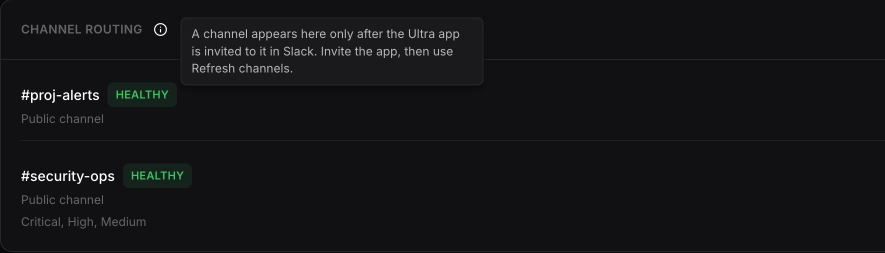 Click **...** on the channel's row and choose **Enable alerts**. The row changes to **Alerts on**.
By default a channel receives **Critical** and **High** alerts. To change that, click **...** and choose **Edit severities**. Under **Send alerts for**, check the severities you want (Critical, High, Medium, Low, or Informational) and click **Apply**. The selected severities are listed under the channel name.
A newly enabled channel shows as **Unverified** until Ultra delivers its first alert to it. To confirm delivery now instead of waiting for a real alert, send a test:
1. Go to **Alerts** and click **Configuration** in the page header.
2. Click **Test** on any alert source, then **Send test**.
The test alert appears in your channel within a few seconds, titled `Test:` followed by the source name, with the context `Test`. Once it is delivered, the connection and the channel both change to **Healthy**.
The test alert has to match the channel's severity filter to be posted. A test is sent at **High** for a guardrail in Block mode, a governance block rule, or anomaly detection while it is on, so it reaches a channel on the default filter. A test for a guardrail in Redact or Monitor mode is sent at Medium or Low, and will not reach a channel filtered to Critical and High.
## Alert Messages
A single alert is posted as a card with the alert title, **Severity**, **Source**, **Context**, and **Observed** time, plus a **View alert in Ultra** button that opens that alert in Ultra Hub. The time shows in each reader's own timezone.
Click **...** on the channel's row and choose **Enable alerts**. The row changes to **Alerts on**.
By default a channel receives **Critical** and **High** alerts. To change that, click **...** and choose **Edit severities**. Under **Send alerts for**, check the severities you want (Critical, High, Medium, Low, or Informational) and click **Apply**. The selected severities are listed under the channel name.
A newly enabled channel shows as **Unverified** until Ultra delivers its first alert to it. To confirm delivery now instead of waiting for a real alert, send a test:
1. Go to **Alerts** and click **Configuration** in the page header.
2. Click **Test** on any alert source, then **Send test**.
The test alert appears in your channel within a few seconds, titled `Test:` followed by the source name, with the context `Test`. Once it is delivered, the connection and the channel both change to **Healthy**.
The test alert has to match the channel's severity filter to be posted. A test is sent at **High** for a guardrail in Block mode, a governance block rule, or anomaly detection while it is on, so it reaches a channel on the default filter. A test for a guardrail in Redact or Monitor mode is sent at Medium or Low, and will not reach a channel filtered to Critical and High.
## Alert Messages
A single alert is posted as a card with the alert title, **Severity**, **Source**, **Context**, and **Observed** time, plus a **View alert in Ultra** button that opens that alert in Ultra Hub. The time shows in each reader's own timezone.
 When several alerts arrive within a few seconds of each other, Ultra groups them into one message instead of posting each separately. The message is titled with the number of alerts (for example **3 Ultra alerts**), shows a count per severity, lists up to five alerts, and has a **View all in Ultra** button.
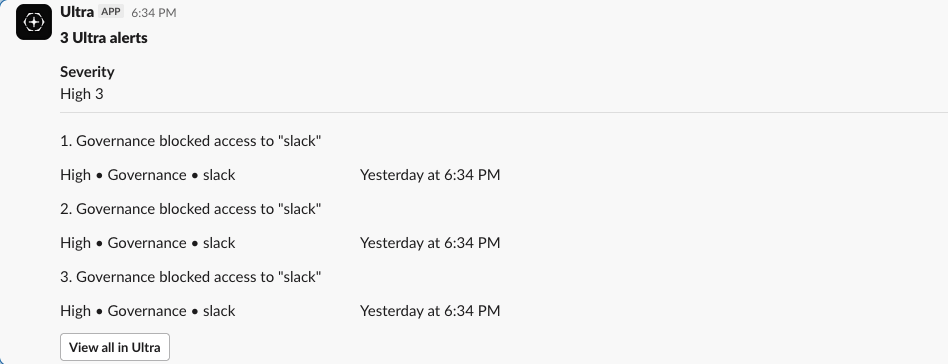 Messages never include the raw content that triggered a guardrail. See [Alerts](/observability/alerts) for what each alert contains.
## Health Status
Your Slack connection and each channel with alerts on show a health status.
| Status | Meaning |
| -------------------------- | --------------------------------------------------------------------------------------------------------------------------------------------- |
| **Unverified** | Ultra has not delivered an alert yet. [Send a test alert](#set-up-slack-alerts) to verify it. |
| **Healthy** | The most recent delivery succeeded. |
| **Degraded** | Deliveries are failing temporarily. Ultra keeps retrying. |
| **Authorization required** | Ultra's access to the workspace was revoked or disconnected. Reconnect the workspace. |
| **Misconfigured** | Ultra cannot post to the channel, for example because the app was removed or the channel was archived. The error is shown on the channel row. |
## Change or Remove a Channel
* **Change severities:** click **...** on the channel and choose **Edit severities**.
* **Stop alerts:** click **...** on the channel and choose **Disable alerts**. Alerts queued for that channel are dropped, and alerts raised while it is off are not sent later.
* **Remove a channel:** disable its alerts in Ultra Hub first, then remove the Ultra app from the channel in Slack.
## Disconnect Slack
Click **...** on the connection card and choose one of:
* **Disconnect workspace:** turns off alerts for every channel, drops any queued alerts, and revokes Ultra's access to Slack. The connection stays in Ultra Hub so you can reconnect it later. After reconnecting, turn alerts back on for each channel.
* **Delete connection:** does the same, then removes the connection from Ultra Hub. This cannot be undone. To confirm, type `Delete` followed by the connection name (for example `Delete Ultra`) and click **Delete Connection**.
## See Also
* [Alerts](/observability/alerts)
* [SIEM Export (Panther)](/observability/siem-export)
* [Audit Log](/observability/audit-log)
Messages never include the raw content that triggered a guardrail. See [Alerts](/observability/alerts) for what each alert contains.
## Health Status
Your Slack connection and each channel with alerts on show a health status.
| Status | Meaning |
| -------------------------- | --------------------------------------------------------------------------------------------------------------------------------------------- |
| **Unverified** | Ultra has not delivered an alert yet. [Send a test alert](#set-up-slack-alerts) to verify it. |
| **Healthy** | The most recent delivery succeeded. |
| **Degraded** | Deliveries are failing temporarily. Ultra keeps retrying. |
| **Authorization required** | Ultra's access to the workspace was revoked or disconnected. Reconnect the workspace. |
| **Misconfigured** | Ultra cannot post to the channel, for example because the app was removed or the channel was archived. The error is shown on the channel row. |
## Change or Remove a Channel
* **Change severities:** click **...** on the channel and choose **Edit severities**.
* **Stop alerts:** click **...** on the channel and choose **Disable alerts**. Alerts queued for that channel are dropped, and alerts raised while it is off are not sent later.
* **Remove a channel:** disable its alerts in Ultra Hub first, then remove the Ultra app from the channel in Slack.
## Disconnect Slack
Click **...** on the connection card and choose one of:
* **Disconnect workspace:** turns off alerts for every channel, drops any queued alerts, and revokes Ultra's access to Slack. The connection stays in Ultra Hub so you can reconnect it later. After reconnecting, turn alerts back on for each channel.
* **Delete connection:** does the same, then removes the connection from Ultra Hub. This cannot be undone. To confirm, type `Delete` followed by the connection name (for example `Delete Ultra`) and click **Delete Connection**.
## See Also
* [Alerts](/observability/alerts)
* [SIEM Export (Panther)](/observability/siem-export)
* [Audit Log](/observability/audit-log)